
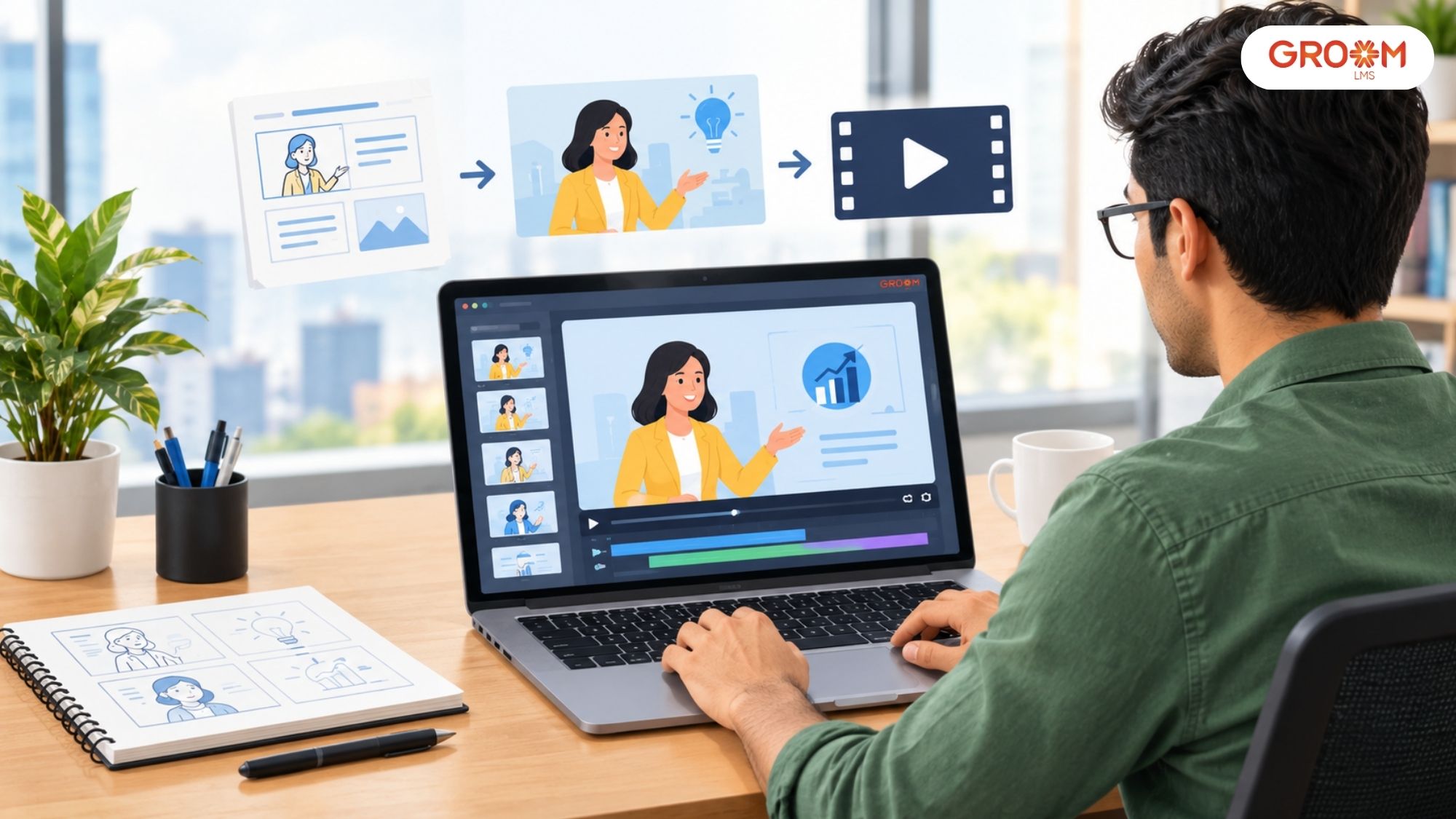
Employees complete a training module, but a few days later, they struggle to explain what they learned. Lengthy presentations, text-heavy slides, and complicated instructions can make important information difficult to understand and remember.
The problem may not be the subject itself. It could be how the information is presented.
Animated explainer videos can turn complex processes, abstract ideas, and lengthy instructions into clear visual stories. By combining narration, movement, illustrations, and practical examples, they make concepts easier to follow step by step.
For organisations using digital learning platforms like GroomLMS, animated explainer videos can support employee onboarding, product training, compliance education, software demonstrations, and workplace safety programmes. When combined with structured courses and assessments, they can become a useful part of the overall learning experience.
Learning how to create animated explainer videos involves more than adding moving graphics to a presentation. You need a clear learning objective, a well-written script, suitable visuals, and a structure that keeps learners focused.
This guide explains how to create animated explainer videos from planning to publishing, including common mistakes to avoid and ways to make your training content more effective.
Why Animated Explainer Videos Work for Employee Training
Animated explainer videos present information through narration, visuals, movement, and examples. This combination can make abstract concepts easier to follow, especially when employees need to understand a process or decision.
For instance, a cybersecurity policy might take several pages to explain. An animation can show an employee receiving a suspicious email, identifying warning signs, and reporting it correctly.
This approach can help training teams:
- Explain complex procedures through clear visual sequences.
- Demonstrate the correct response to workplace situations.
- Maintain a consistent training experience across teams.
- Break lengthy topics into shorter, focused learning videos.
- Reinforce important concepts through repetition and knowledge checks.
However, animation alone does not guarantee better learning. The video must explain something useful, at an appropriate pace, with visuals that support the lesson.
How to Create Animated Explainer Videos for Training
Creating an effective training video becomes easier when you follow a structured process. Each stage should support the learning objective rather than simply make the video look attractive.
1. Define the learning objective
Start by deciding what employees should know or do after watching the video.
Avoid broad objectives such as “understand workplace safety.” Instead, choose a specific outcome, such as “identify three actions to take when a workplace accident occurs.”
A clear objective helps you decide which information belongs in the video and what you can leave out.
2. Understand your learners
Consider who will watch the video, their existing knowledge, and the problems they face at work.
New employees may need basic explanations and examples. Experienced staff might benefit more from scenario-based training that addresses difficult decisions.
Ask yourself:
- What do learners already know?
- Which concept or process confuses them?
- What mistake should the training help prevent?
- Where will they apply the knowledge?
These answers help you create relevant content instead of a generic presentation.
3. Write a short, focused script
The script determines what the video teaches and how the explanation unfolds. Write in conversational language and keep each section focused on one idea.
A useful structure is:
- The problem: Introduce a situation learners recognise.
- The explanation: Describe the concept or process.
- The demonstration: Show the correct approach through an example.
- The recap: Reinforce the main learning points.
For example, a video about password security could begin with an employee receiving a suspicious login alert. The narration then explains what to check, how to report the alert, and what action to avoid.
Read the script aloud before approving it. If a sentence feels complicated when spoken, simplify it before production begins.
4. Create a storyboard
A storyboard maps each part of the script to a scene. It helps instructional designers, subject matter experts, and animators agree on the video before detailed production starts.
Use a simple table to plan the scenes.
| Scene | Narration | Visual |
|---|---|---|
| 1 | An employee receives a suspicious email. | An inbox displays an unexpected message. |
| 2 | Check the sender and inspect the link. | The sender address and link are highlighted. |
| 3 | Report suspicious messages. | The employee selects the reporting option. |
| 4 | Never share login credentials. | A clear reminder appears beside a password field. |
Review the storyboard for accuracy, clarity, and pacing. Making changes at this stage is usually easier than rebuilding completed animation.
5. Choose the right animation style
You do not need advanced animation for every training topic. Select a style based on what learners need to see.
- 2D character animation: Useful for workplace scenarios, conversations, and behavioural training.
- Motion graphics: Suitable for explaining concepts, statistics, systems, and processes.
- Animated diagrams: Helpful for showing workflows, relationships, and decision paths.
- Screen-based animation: Effective for software tutorials and step-by-step demonstrations.
- 3D animation: Useful for illustrating machinery, products, or physical processes.
A software training video, for example, may work best with animated screen demonstrations. A customer service lesson may benefit from characters acting out a difficult conversation.
6. Add narration, sound, and captions
Record clear narration that matches the visuals. Keep the pace comfortable and leave enough time for learners to understand each step.
Background music and sound effects can support the presentation, but they should not compete with the explanation.
Add accurate captions so employees can follow the content without relying entirely on audio. Use readable text, sufficient contrast, and restrained transitions.
The W3C guidance on accessible audio and video provides useful recommendations for clear language, captions, readable text, and accessible visual information.
7. Review and test the video
Before publishing, ask a subject matter expert to check technical accuracy and an instructional designer to review the learning experience.
Then test the video with a small group of intended learners. Ask whether the explanation was clear, which sections felt confusing, and whether they can apply the information.
Make revisions based on their feedback. A visually polished video is not successful if learners still struggle to perform the task.
Common Mistakes to Avoid When Creating Training Animations
Even a well-produced animation can miss its purpose when the learning design is weak.
Trying to explain everything in one video: Cover one main concept or process at a time. Split large topics into a series of shorter videos.
Using visuals only for decoration: Every animation should clarify an idea, demonstrate an action, or direct attention to important information.
Overloading the screen with text: Keep on-screen wording brief and let narration explain the details. Use labels and diagrams where they improve understanding.
Ignoring workplace context: Use realistic situations employees may encounter. Practical examples help connect the lesson to everyday decisions.
Publishing without assessment: Watching a video does not confirm that someone understood it. Add a short quiz, scenario, or practice task when appropriate.
These changes help turn animation from a presentation format into a useful part of a structured training programme.
How to Use Animated Explainer Videos in an LMS
Creating the video is only one part of the process. Training teams also need to deliver it, connect it with relevant learning activities, and monitor whether employees complete the programme.
An LMS can organise these elements in one place.
For example, a company introducing a new data protection policy could build a learning sequence that includes:
- An animated explainer introducing the policy.
- A short scenario showing how the policy applies at work.
- A knowledge check covering the main requirements.
- An assessment to evaluate employee understanding.
- Progress and completion records for training managers.
This structure makes the video part of a wider learning experience rather than an isolated file.
GroomLMS supports digital courses, assessments, certifications, and virtual training. Organisations can use its learning environment to organise training content and related learning activities. Explore the GroomLMS solutions to understand how these capabilities may fit your training requirements.
The key is to connect every video to a clear learning objective and a suitable follow-up activity.
Conclusion
Learning how to create animated explainer videos can help training teams turn complicated information into clear, practical lessons. The strongest videos begin with a specific learning objective, use a focused script, and show concepts through relevant visual examples.
A structured production process also saves time. Planning the storyboard before animation, selecting an appropriate visual style, and reviewing the content early can reduce unnecessary revisions. Meanwhile, clear narration, captions, and readable visuals make the final video easier for more employees to access.
However, publishing the video should not be the final step. Add a knowledge check or practical activity when appropriate, gather learner feedback, and review whether employees can apply what they learned.
An LMS can help bring animated videos, assessments, courses, and completion tracking together in a consistent training experience. GroomLMS provides digital learning capabilities that support organisations as they develop and manage structured training programmes.
Ultimately, the goal is not to create the most elaborate animation. It is to help employees understand important concepts, remember key information, and make better decisions at work. Start with one genuine learning problem, explain it clearly, and build from there.
Make Training Videos More Effective with GroomLMS
Discover how GroomLMS empowers your organization to streamline training, enhance learner engagement, and deliver impactful learning experiences with an AI-powered LMS built for growth.
Contact Us | Join GroomLMS | Chat on WhatsApp
Frequently Asked Questions (FAQs)
What is an animated explainer video?
An animated explainer video uses animation, narration, text, illustrations, or motion graphics to explain a concept, process, product, or idea. In training, it can simplify complex subjects and demonstrate processes visually.
How do you create an animated explainer video for employee training?
Start by defining a learning objective and understanding your learners. Then write a focused script, create a storyboard, design the visuals, record the voiceover, animate and edit the video, add an activity or assessment, and publish it through your LMS.
How long should an animated training video be?
There is no fixed ideal duration. Short videos focused on one concept are often suitable for microlearning. The right length depends on the complexity of the subject and the learning objective.
Can animated explainer videos be used in an LMS?
Yes. Animated videos can be included within LMS courses alongside learning materials, quizzes, assessments, activities, progress tracking, and certifications. This turns a standalone video into part of a complete learning experience.
Can GroomLMS be used to manage video-based training?
Yes. GroomLMS supports digital courses, assessments, certifications, and virtual training. Organizations can use these capabilities to structure animated explainer videos within broader employee learning and development programs.