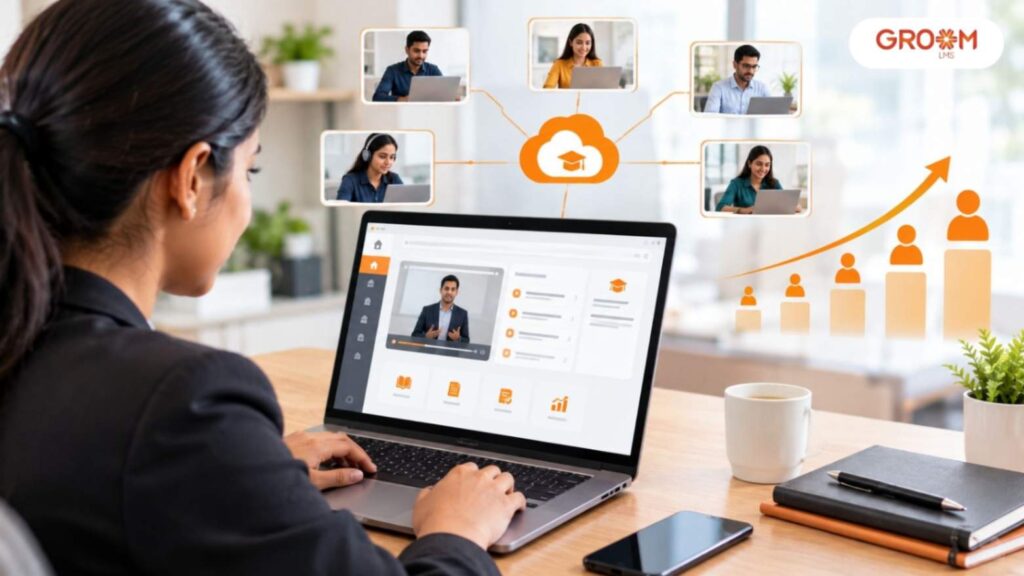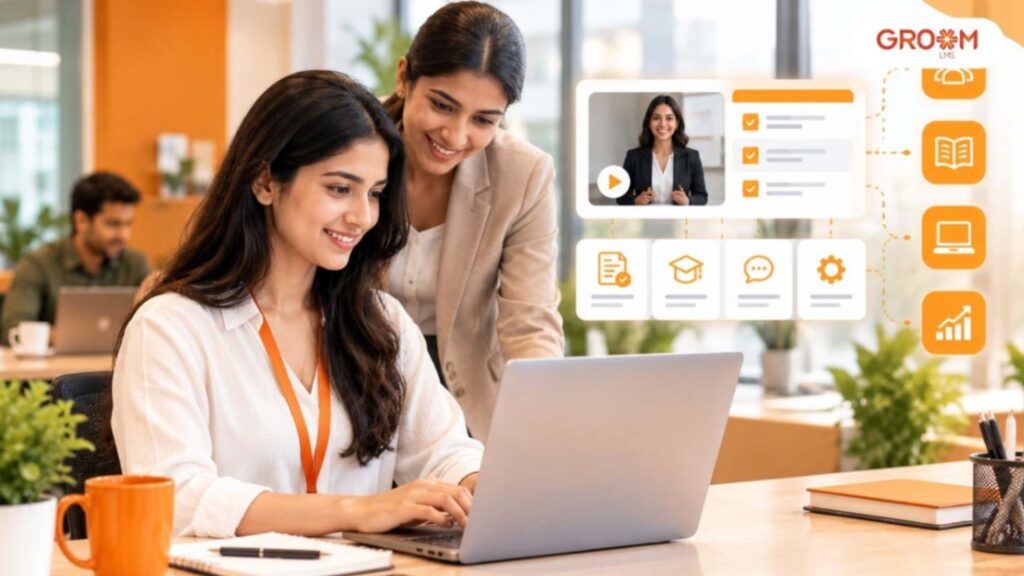
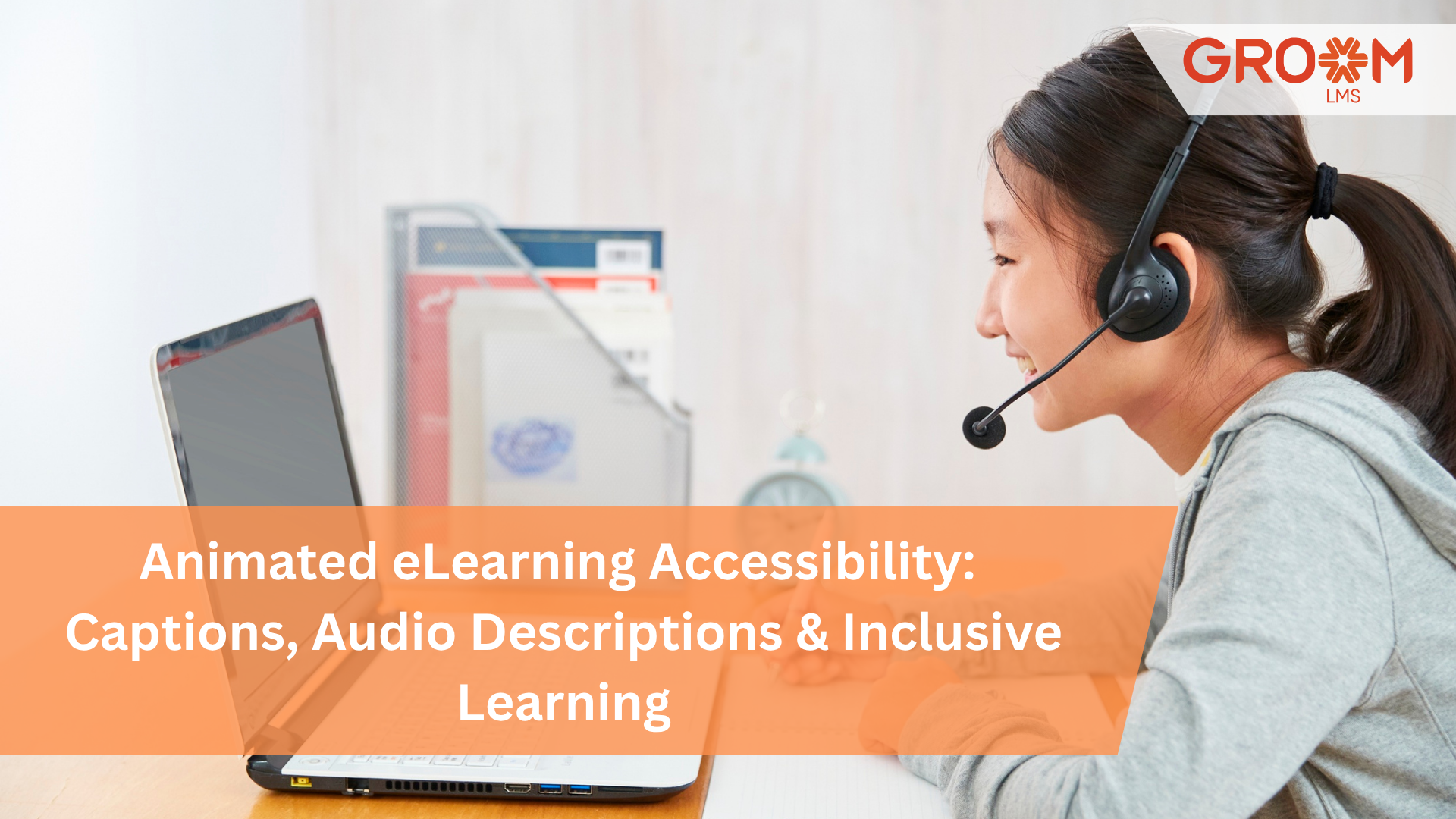
Animated eLearning can turn a complex training topic into a simple and engaging experience.
However, engaging content is not automatically accessible content.
Imagine watching an animated compliance course without sound. If the important information only appears through narration, you may miss key points. Now imagine listening to the same course without seeing the screen. If the animation contains essential information that the narrator never explains, you may miss it again.
That is why eLearning accessibility matters.
Accessible eLearning helps more learners understand, navigate, and complete training successfully. It considers different abilities, learning preferences, devices, and environments.
For L&D and HR teams, accessibility is also part of building a better employee learning experience. Instead of creating separate training for different learners, teams can design content that works for a broader audience from the beginning.
GroomLMS can support organizations in delivering scalable digital learning programs and eLearning content. With the right accessibility practices, animated training can become both engaging and inclusive.
What Is eLearning Accessibility?
eLearning accessibility means designing digital learning experiences that people with different abilities can access, understand, navigate, and complete.
It includes more than adding captions.
Accessible training can consider:
- Hearing accessibility
- Visual accessibility
- Cognitive accessibility
- Motor accessibility
- Readability
- Navigation
- Content structure
- Device compatibility
For example, a learner with hearing loss should still understand a video through accurate captions or transcripts.
Similarly, a learner who cannot see certain visual information should not lose essential knowledge because the animation communicates it only through visuals.
Therefore, accessibility should become part of the content design process rather than an afterthought.
Why Accessibility Matters in Animated eLearning
Animation makes training more visual. It can explain processes, demonstrate scenarios, and simplify complicated ideas.
However, animation can also create accessibility barriers.
Consider an animated safety course. A visual warning appears on screen while the narrator discusses something else. A learner who cannot see the animation may miss the warning.
Likewise, a learner who cannot hear the narration may miss the explanation.
An accessible course provides alternative ways to receive the same important information.
This creates a more inclusive learning experience while also making content easier to use in different situations.
For example, employees may complete training:
- In a noisy office
- Without headphones
- On a mobile device
- In a shared workspace
- With limited bandwidth
- Using assistive technology
Accessibility can make the learning experience more flexible in all these situations.
1. Add Accurate Captions to Animated eLearning
Captions are one of the most important accessibility features for video and animated training.
They display spoken content as text on the screen. Good captions should also communicate meaningful sounds when those sounds affect understanding.
For example:
Poor approach:
“Welcome to the safety module.”
Better captioning:
“[Alarm sounds] Welcome to the safety module.”
However, captions should not simply be generated and published without review.
Automated captions can contain errors, especially with:
- Industry terminology
- Names
- Acronyms
- Numbers
- Regional accents
Therefore, training teams should review captions before publishing them.
Best Practices for Captions
- Keep captions synchronized with speech.
- Use clear and readable text.
- Check spelling and terminology.
- Avoid covering important visual information.
- Identify different speakers when necessary.
- Include meaningful sound information.
Accurate captions improve accessibility while also helping learners who prefer reading along.
2. Provide Transcripts for Audio and Video Content
Captions appear alongside video. Transcripts provide the complete spoken content in a separate text format.
A transcript can help learners review information quickly.
For instance, an employee may want to search for a specific policy term without replaying an entire five-minute animation.
Transcripts can also support learners who prefer reading.
A useful transcript should include the important spoken content and relevant descriptions needed to understand the learning material.
Therefore, transcripts can complement captions rather than replace them.
3. Use Audio Descriptions for Important Visual Information
Audio descriptions help learners who cannot fully access visual information.
They describe important visual elements that are not already explained through narration.
For example, an animated training video might show a dashboard while the narrator says:
“Now, select the compliance report.”
That may not explain what the dashboard looks like or where the relevant option appears.
An audio description could explain the important visual context.
When Should You Add Audio Descriptions?
Consider audio descriptions when:
- Visual information is essential to the lesson.
- An animation demonstrates a process.
- Charts contain important information.
- On-screen text communicates key instructions.
- Body language or visual actions affect the scenario.
The goal is simple: make essential visual information available through audio or another accessible format.
4. Make On-Screen Text Easy to Read
Accessibility also depends on visual design.
Animated courses often use colorful backgrounds, moving text, and decorative elements. However, too much visual activity can make content difficult to read.
Instead, use:
- Clear fonts
- Strong text-background contrast
- Short blocks of text
- Consistent layouts
- Descriptive headings
- Sufficient spacing
- Easy-to-read buttons
Avoid placing important text over busy animations.
Furthermore, do not rely only on color to communicate meaning.
For example, instead of saying:
“Click the green option.”
Use:
“Select the Correct Answer option.”
This provides information beyond color alone.
5. Make Navigation Simple and Predictable
Accessible learning is not only about content.
Learners must also be able to navigate the course.
A well-designed course should make it easy to:
- Start a lesson
- Pause content
- Replay content
- Move between sections
- Access transcripts
- Find assessments
- Understand progress
Keyboard-friendly navigation can also help learners who cannot use a mouse easily.
Therefore, training teams should test navigation before launching a course.
6. Avoid Accessibility Barriers From Excessive Animation
Animation can improve engagement. Yet too much movement can create problems for some learners.
Fast transitions, flashing elements, constant movement, or crowded screens can make learning uncomfortable or difficult to follow.
Use animation with purpose.
Ask:
Does this movement help explain the concept?
If the answer is no, consider removing it.
A simple animation that clearly explains a process can be more effective than a visually complex scene.
7. Design Accessible Assessments
Accessibility should continue into assessments.
A learner may understand the course perfectly but struggle with an inaccessible quiz.
When designing assessments:
- Use clear instructions.
- Keep questions concise.
- Provide readable answer choices.
- Avoid unnecessary time pressure.
- Make controls easy to navigate.
- Provide meaningful feedback.
- Ensure interactive elements are accessible.
For example, an assessment should not require learners to identify an answer using color alone.
Instead, use text labels alongside colors or visual indicators.
8. Follow an Accessibility-First Content Workflow
Accessibility becomes easier when teams include it from the beginning.
A practical workflow looks like this:
Step 1: Plan
Identify the learners and their potential accessibility needs.
Step 2: Design
Create a clear storyboard with accessible text, audio, visuals, and interactions.
Step 3: Develop
Add captions, transcripts, audio descriptions, readable layouts, and accessible controls.
Step 4: Test
Review the course using different devices and accessibility tools.
Step 5: Review
Ask real users or accessibility specialists to identify potential barriers.
Step 6: Improve
Fix issues before publishing the final course.
This approach is more effective than trying to retrofit accessibility after development.
How GroomLMS Can Support Inclusive Digital Learning
Organizations need more than good content. They also need a platform that can help manage learning at scale.
GroomLMS provides scalable LMS capabilities for businesses and institutions. Its solutions support digital course development, assessments, certifications, virtual training, analytics, and learning workflows.
Its eLearning content services also cover areas such as:
- Instructional design
- Multimedia development
- Content localization
- Assessments
- Turnkey eLearning programs
This gives organizations a foundation for creating and managing structured digital learning experiences.
For L&D teams, the goal is not simply to add more features. It is to create training that learners can actually access, understand, and complete.
When accessibility becomes part of the content strategy, organizations can build a more inclusive learning culture.
A Quick Accessibility Checklist for Animated eLearning
Before publishing an animated course, ask:
- Are all important spoken words captioned?
- Are captions accurate and synchronized?
- Is a transcript available?
- Are essential visuals explained through audio or text?
- Is on-screen text easy to read?
- Does the design provide sufficient contrast?
- Can learners navigate the course easily?
- Are interactive elements accessible?
- Does the assessment follow the same accessibility principles?
- Has the course been tested with different users and devices?
If several answers are “no,” the course may need another accessibility review.
Common Mistakes to Avoid
Even well-designed eLearning courses can contain accessibility problems.
Avoid these common mistakes:
Relying Only on Automated Captions
Automatic captions save time, but they can contain errors. Always review important training content.
Using Visuals Without Explanation
Important charts, diagrams, or animations should have accessible alternatives.
Adding Too Much Movement
Excessive animation can distract learners and reduce comprehension.
Treating Accessibility as an Afterthought
Adding accessibility at the end can require expensive redesign work.
Ignoring Mobile Learners
Content should remain usable across different screen sizes and devices.
Forgetting Assessments
An accessible lesson followed by an inaccessible quiz still creates a barrier.
Conclusion
eLearning accessibility helps organizations create training that more learners can access, understand, and complete.
Captions, transcripts, audio descriptions, readable designs, accessible navigation, and inclusive assessments all contribute to a better learning experience.
More importantly, accessibility should become part of the entire eLearning development process. Teams should plan for accessibility before development begins and test content before launch.
GroomLMS can help organizations build and manage scalable digital learning programs through LMS capabilities and eLearning content services.
By combining engaging animation with thoughtful accessibility, organizations can create training that is not only interactive but also more inclusive, flexible, and learner-friendly.
Transform Your Corporate Learning with GroomLMS
Discover how GroomLMS empowers your organization to streamline training, enhance learner engagement, and deliver impactful learning experiences with an AI-powered LMS built for growth.
Request a Personalized Demo | Schedule a Consultation | Chat with Our Team
Frequently Asked Questions(FAQs)
What is eLearning accessibility?
eLearning accessibility means designing digital learning content that people with different abilities can access, understand, navigate, and complete.
Why are captions important in animated eLearning?
Captions provide text for spoken content. They help learners who are deaf or hard of hearing and support people learning in noisy or quiet environments.
What are audio descriptions in eLearning?
Audio descriptions explain important visual information that may not be communicated through narration. They can help learners who cannot fully access visual content.
Are transcripts necessary for online training?
Transcripts can make training more accessible and searchable. They also give learners another way to review spoken content.
Can an LMS support accessible employee training?
Yes. An LMS can help organizations deliver structured digital courses, assessments, certifications, and learning resources. Accessibility also depends on how the learning content itself is designed.